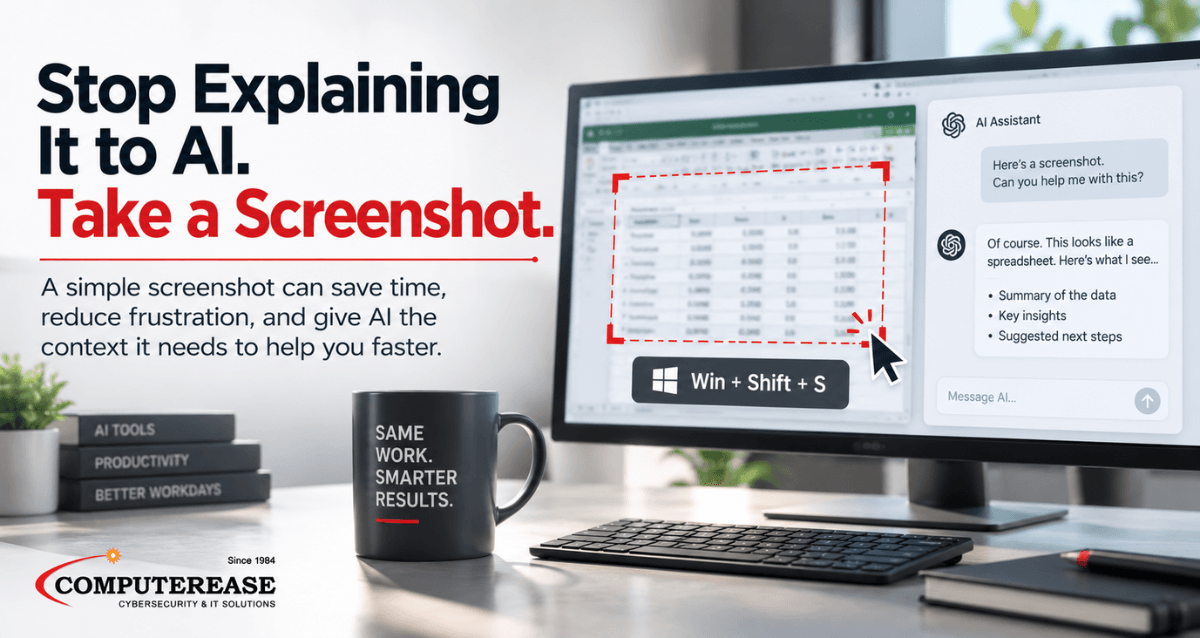
One of the easiest ways to get more out of AI is also one people tend to overlook: take a screenshot.
Think about how often you run into something on your computer that you don’t quite know how to explain.
Maybe Excel is giving you an error you’ve never seen before. There’s a setting in Microsoft 365 you can’t find. A chart doesn’t make sense. You’re staring at a software screen trying to figure out what to click next. Or an error message appears and you don’t even know what the terminology means.
Instead of spending ten minutes trying to describe it, take a screenshot and upload it to ChatGPT, Copilot, or another AI tool that can analyze images.
Then ask a simple question:
“What does this error mean, and how do I fix it?”
“Where do I change this setting?”
“Explain what this chart is telling me.”
“What should I click next?”
“How can I make this spreadsheet easier to read?”
You don’t have to know the right technical terms because AI can see what you’re seeing.
That makes screenshots particularly useful for learning unfamiliar software. You can ask AI to walk you through a screen one step at a time, explain what different options do, or help you figure out where to find a feature. If the first answer isn’t clear, take another screenshot and keep going.
Before you upload anything, though, check your organization’s AI policies.
Make sure screenshots are allowed, understand what information you’re permitted to share, and know which AI platforms your company has approved for business use. A screenshot that seems harmless can contain customer information, financial data, employee information, email addresses, confidential company information, or other details you didn’t intend to share.
The AI platform matters, too. Don’t assume that because you’re allowed to use one approved business AI tool, you can upload the same company information into any free or personal AI account.
Once you know what you’re allowed to share and where you’re allowed to share it, screenshots can eliminate a surprising amount of back-and-forth. They give AI the context that’s often difficult to put into words and can make getting help with everyday technology much faster.
Complete This Form To Claim Your FREE Cyber Security & AI Risk Assessment